Prepare the outline
Bring wall lengths, opening positions, ceiling heights and a list of fixed features. Use one unit convention and mark estimates. The measurement guide shows how to reconcile wall segments with an overall span.
Build the 2D layout first
Open the planner from the page header. Use the Build tools to draw the outline and set dimensions. The squared-wall setting is useful for right-angled layouts; change it for measured angled walls. Include recesses rather than approximating every room as a rectangle.
Add doors and windows at their recorded positions. Compare the outline with your notes before placing furniture. On small screens, work through one tool panel at a time to leave room for the drawing.
Use 2D for checks and 3D for explanation
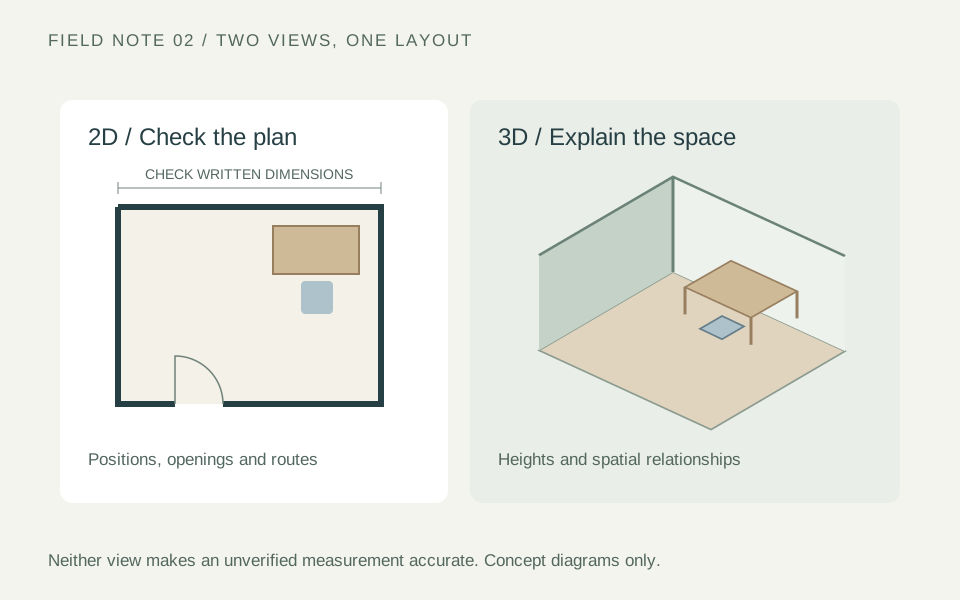
The overhead 2D view helps you compare room connections, openings and furniture footprints without perspective distortion. Select 3D to inspect heights and explain the arrangement to someone less familiar with plans.
A 3D view does not validate the survey, structural conditions or product fit. Return to dimensioned information when a size matters. Use both views to identify questions, not to conceal uncertainty.
Test an option deliberately
Save the starting layout, then change one thing: a desk position, seating arrangement or room connection. Check circulation and operating space in 2D, then review the arrangement in 3D. Record the decision rather than choosing only the most attractive view.
Review the layout before preparing exports
With the measured outline in place, work through the layout review checklist. Check routes, door swings and furniture in use before preparing a proposal.
Keep an editable project backup after important changes; browser storage is not cloud backup. When the option is ready to discuss, the saving and sharing guide covers export formats, backups and handover checks in one place.
Continue your planning
Put these checks into practice: work through a measured room layout.